

Buying Robux with Google Play is simple once you know the steps. You link your Google Play balance to Roblox, select a Robux package, and complete the purchase through Google’s payment system.
Key Takeaways
- You can buy Robux through the Roblox app on Android using your Google Play balance or a linked payment method.
- Google Play gift cards are one of the easiest ways to add funds without needing a credit card.
- You must have a Google account set up and the Roblox app installed on an Android device to get started.
- Robux prices range from $0.99 for 80 Robux all the way up to $99.99 for 10,000 Robux.
- Parents can use Google Play’s Family Link to set spending limits and approve purchases for younger kids.
- Double-check your balance before buying to avoid failed transactions or accidental charges.
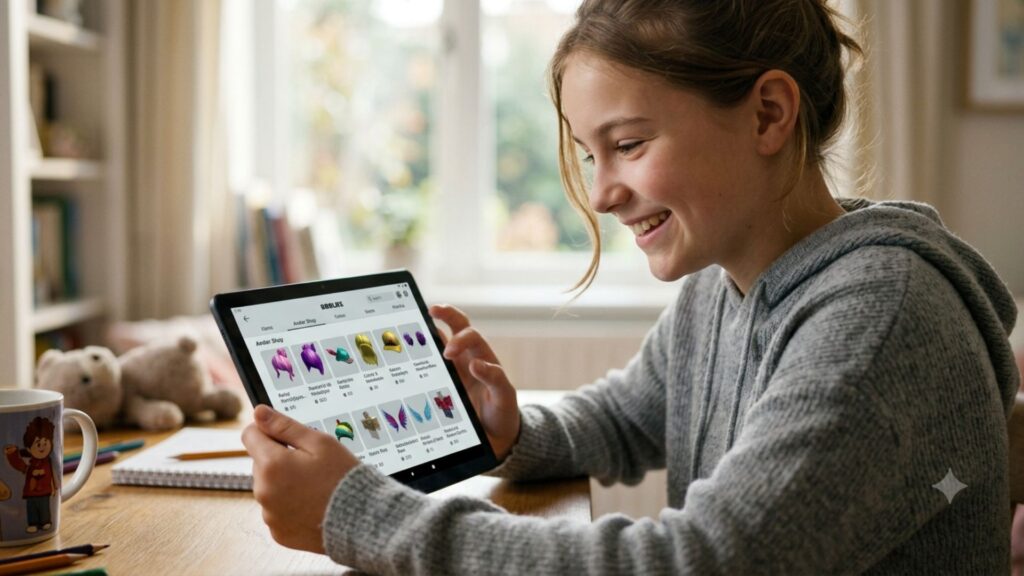
Roblox is one of the most popular platforms for kids and teens in the United States, with millions of players logging in every single day. Whether you want to deck out your avatar, access premium experiences, or get ahead in your favorite games, Robux is the in-game currency that makes it all possible. If you have an Android phone or tablet, using Google Play to buy Robux is a really convenient option, and you can find more information and updates on our blog. This article walks you through the whole process, from setting up your Google Play balance to completing your first purchase, so nothing catches you off guard.
What You Need Before You Start
Before you tap that buy button, it helps to have a few things in place. Missing one of these steps is the most common reason purchases fail, so take two minutes to check everything off first.
Here’s what you need:
- An Android device (phone or tablet) with the Roblox app installed
- A Google account signed in on that device
- A Google Play balance, gift card, or linked payment method (credit card, debit card, or PayPal)
- A Roblox account (free to create at roblox.com)
If you do not have the Roblox app yet, download it from the Google Play Store. It is free and takes less than a minute to install. Once you have it open and you are logged into your Roblox account, you are ready to move forward.
One thing worth mentioning: purchases made through the Google Play Store are subject to Google’s own billing system, and understanding the evolution a comprehensive history of roblox can help you appreciate how the platform has grown to support these payment options. You will not enter your payment info inside the Roblox app itself; Google handles that part.
How to Add Funds to Google Play
If you already have a Google Play balance or a credit card linked to your Google account, you can skip ahead. But if you are starting from zero, here is how to add money to Google Play.
Option 1: Google Play Gift Card
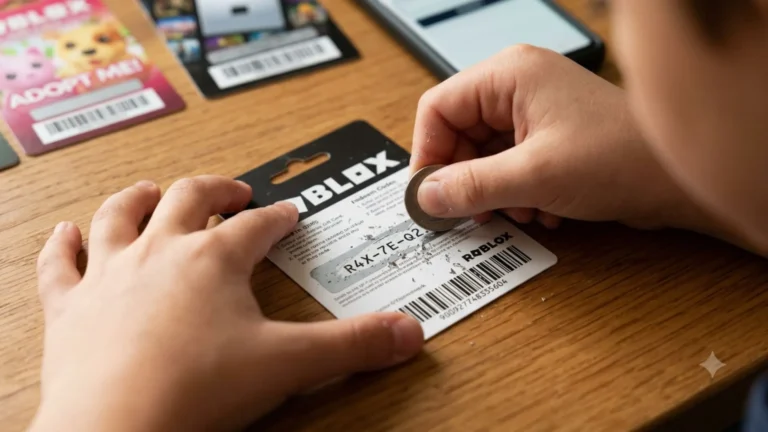
This is the most popular option for younger players who do not have a credit card. You can buy Google Play gift cards at Walmart, Target, CVS, Walgreens, and thousands of other stores across the US. They come in amounts like $10, $25, $50, and $100.
To redeem a gift card:
- Open the Google Play Store app on your Android device.
- Tap your profile icon in the top right corner.
- Select “Payments and subscriptions.”
- Tap “Redeem gift code.”
- Scratch off the back of the card and enter the code.
Your balance updates instantly and you can use it right away.
Option 2: Credit or Debit Card
You can link a Visa, Mastercard, American Express, or Discover card directly to your Google account. Go to pay.google.com to manage your payment methods. Once a card is linked, it shows up automatically when you go to make a purchase.
Option 3: PayPal
Google Play also accepts PayPal in the United States. Link your PayPal account through Google Pay settings and it becomes available as a checkout option.
Step-by-Step: How to Buy Robux With Google Play
Now for the main event. Here is exactly how to buy Robux with Google Play on your Android device.
Step 1: Open the Roblox App
Make sure you are logged into the correct Roblox account. If you have multiple accounts (common in households with more than one kid), double-check which one you are on before buying.
Step 2: Tap the Robux Icon
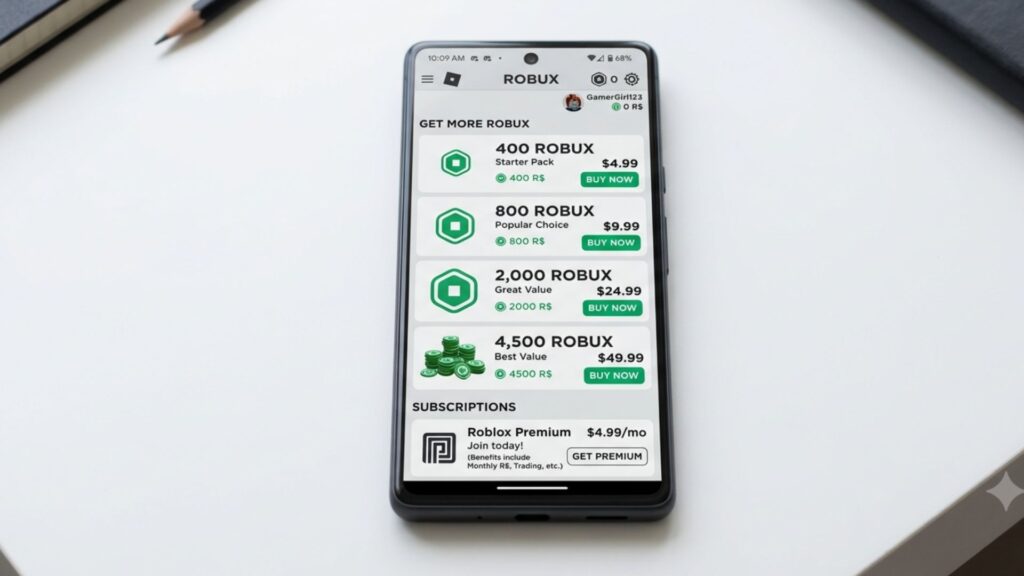
Look for the Robux icon at the top of your screen. It looks like a small R$ symbol. Tap it and a menu will pop up showing the available Robux packages.
Step 3: Choose Your Package
Here is a breakdown of the standard Robux packages available through Google Play:
| Package | Price (USD) | Robux Amount |
|---|---|---|
| Starter | $0.99 | 80 Robux |
| Small | $4.99 | 400 Robux |
| Medium | $9.99 | 800 Robux |
| Large | $24.99 | 2,000 Robux |
| Extra Large | $49.99 | 4,500 Robux |
| Max | $99.99 | 10,000 Robux |
Roblox Premium subscribers get a 10% bonus on top of these amounts, which adds up fast if you buy Robux regularly. You can learn more about Premium on the official Roblox support page.
Step 4: Tap Buy
Select the package you want and tap the buy button. Google Play will take over from here and show you a payment confirmation screen.
Step 5: Confirm With Google Play
You will see a pop-up from Google Play asking you to confirm the purchase. It will show your payment method (gift card balance, card on file, or PayPal). Confirm it and the transaction goes through in seconds.
Step 6: Check Your Robux Balance
After the purchase is confirmed, go back to the Roblox app and check your balance at the top of the screen. The Robux should appear almost immediately, though in rare cases it can take a few minutes.
Parental Controls and Safe Spending
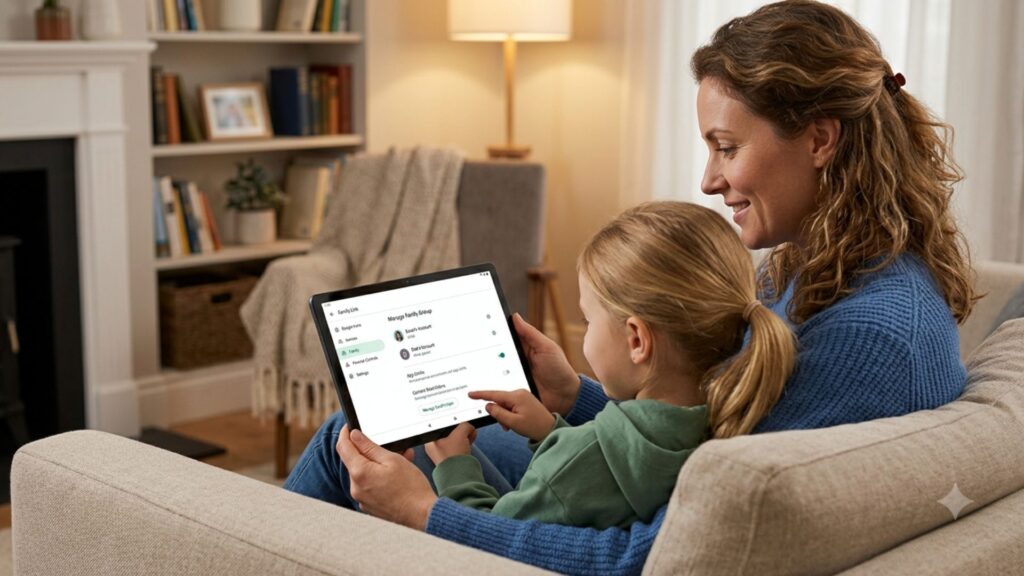
If you are a parent setting this up for your child, Google Play has solid built-in tools to help you stay in control of spending. According to Google’s Family Link support page, you can require parental approval for every purchase made on your child’s device. That means your kid cannot spend a single dollar without you getting a notification and approving it first.
Here is how to turn on purchase approvals:
- Open the Family Link app on your own phone.
- Select your child’s account.
- Tap “Controls” and then “Google Play.”
- Under “Purchase approvals,” select “All content.”
This gives you complete control without having to take the device away. You can also set a monthly spending limit, which is great for giving kids a budget they can manage on their own.
Roblox also has its own parental controls. The Roblox parent safety page covers how to restrict chat, limit which games your child can play, and set a spending PIN so no purchases happen without your approval.
Things to Know
- Google Play purchases are final. Roblox’s refund policy is strict, and Google rarely approves refunds for digital content, so choose your package carefully before confirming.
- The price you pay includes any applicable state sales tax, which Google calculates automatically at checkout.
- If your Google Play balance is not enough to cover the full cost, you can split the payment between your balance and a linked card, depending on your account settings.
- Buying through Google Play is not available on iOS devices (iPhones or iPads). iPhone users need to use the App Store instead.
- Robux purchased through Google Play are tied to your Roblox account and cannot be transferred to another account.
- Some older Android devices may not support the latest version of the Roblox app, which can cause checkout issues.
Common Problems and How to Fix Them
Even when you follow every step correctly, things can sometimes go sideways. Here are the most common issues and quick fixes.
Purchase keeps failing: This usually means your Google Play balance is too low or your payment method was declined. Check your balance at pay.google.com and make sure your card details are current.
Robux did not show up: Wait five minutes and refresh the app. If they still have not appeared, go to Roblox’s support page and submit a ticket. Keep your Google Play receipt as proof.
Wrong account received the Robux: This happens when you are logged into the wrong Roblox account on your device. Roblox cannot transfer Robux between accounts, so always verify which account is active before buying.
App crashes during checkout: Update the Roblox app through the Google Play Store and try again. Outdated versions can cause payment screens to freeze.
If you are new to Roblox and want to understand more about the platform itself before spending money, checking out the evolution a comprehensive history of roblox gives you a solid sense of where the game came from and why it has grown so big.
How to Spend Your Robux Once You Have Them
Once your balance is loaded up, the fun begins. Robux can be spent in a few different ways inside Roblox:
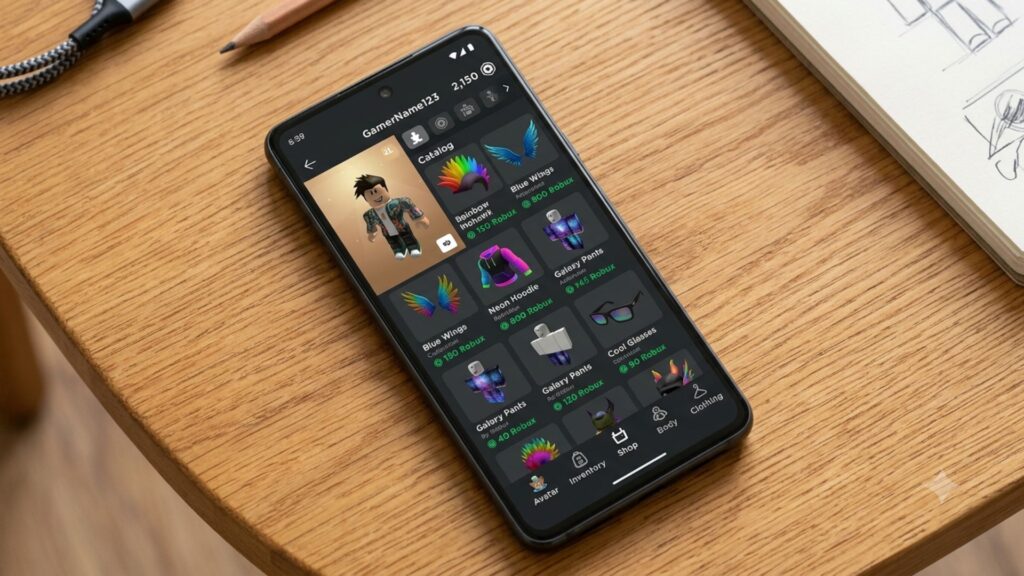
- Avatar shop: Buy clothing, accessories, gear, and animations to customize your character.
- Game passes: Unlock special abilities or perks inside specific games. For example, in welcome to bloxburg the popular roleplaying game on roblox, you can buy the Bloxburg game pass to access one of the most beloved roleplaying experiences on the platform.
- Private servers: Rent a private server in many games so you can play with just your friends.
- In-game upgrades: Many popular games sell boosts or items. If you enjoy collecting virtual pets, the blog post on pet simulator x building your virtual pet empire breaks down exactly how to make the most of your Robux in that game.
Not sure which games are worth spending Robux on? The roundup of top 10 best roblox games a must try list of exciting virtual adventures is a great starting point for finding experiences that are worth your coins.
For players who enjoy the newer titles, the post about grow a garden free sheckles covers a fun way to earn in-game currency in one of Roblox’s trending games. And if you want to keep up with everything happening in the Roblox world, the blog at RobuxPortal is updated regularly with tips, game guides, and Roblox news.
Frequently Asked Questions
Q: Can I use a Google Play gift card to buy Robux?
Yes, Google Play gift cards work perfectly for buying Robux on Android devices.
Redeem your card through the Google Play Store app, and the balance will be added to your Google account. When you go to purchase Robux inside the Roblox app, your gift card balance will appear as a payment option at checkout.
Q: Is it safe to buy Robux through Google Play?
Yes, buying Robux through Google Play is completely safe and officially supported by both Google and Roblox.
All transactions go through Google’s secure payment system, which is protected by encryption and two-factor authentication. Never buy Robux from third-party websites, as those are almost always scams. The Federal Trade Commission (FTC) has published advice on avoiding online scams that applies directly to situations like this.
Q: Why is my Robux purchase not going through on Android?
The most common reasons are an insufficient Google Play balance, an outdated Roblox app, or a declined payment method.
Check your balance at pay.google.com and make sure your Roblox app is updated to the latest version in the Google Play Store. If the problem persists, contact Roblox support directly.
Q: Can parents set a spending limit for Robux purchases on Google Play?
Yes, Google’s Family Link app lets parents require approval for all purchases and set monthly spending limits.
Once Family Link is set up, your child cannot complete a Google Play transaction without your approval. This is the easiest way to stay in control of Robux spending without taking the device away entirely.
Q: Do Robux bought with Google Play expire?
No, Robux do not expire once they are added to your Roblox account.
Your balance stays in your account until you spend it. There are no time limits, monthly fees for holding Robux, or reasons they would disappear, as long as your Roblox account remains active and in good standing according to Roblox’s Terms of Use.
The Bottom Line on How to Buy Robux With Google Play
Knowing how to buy Robux with Google Play makes it easy to add funds, stay safe, and keep spending under control, whether you are a kid picking up your first package or a parent setting things up for your child. The process takes less than five minutes once your Google account is set up with a payment method, and Google’s family tools make it one of the safer ways to handle in-game purchases.
Your next step is simple: check your Google Play balance, open the Roblox app on your Android device, and pick the Robux package that fits your budget. Start small if you are not sure, and work your way up once you know what you want to spend your Robux on.